Tools >
Basic
These are your nuts and bolts of page design. There is usually more than one way to achieve a basic function so if something doesn’t feel right, try a different widget.
text tools
There are several text tools, each with pros and cons. The basic ones are Elementor’s Heading and Text Editor. There are also: Dual Heading, Fancy Heading, Dual Color Heading, Advanced Heading, Animated Text, Textual Showcase, Text Path, Bullet List and a PAP Heading widget with inbuilt styles. If you have a lot of text but want to keep the page neat, you could use the Read More or Unfold widget. That’s a lot of options for text so to narrow things down, we suggest you look at Fancy Heading for creative headings, Textual Showcase for a mix of media and text, Text Path for unusual paths, PAP Heading for quickly styled headings, and Unfold for hidden lengthy texts.
image tools
As with text tools, there are several ways to insert images. They can go into the background of a container (see the Style tab) or you can insert a widget into a container (i.e. on top of the background). If inserting an image into the background, be sure to adjust its settings like position (usually “centre centre”), attachment (usually “default” but you could try “fixed” for a different effect), repeat (usually “no repeat”) and display size (usually “contain” or “cover”). Foreground image widgets include Image, Image Box (more versatile), Image Carousel, Basic Gallery, Image Gallery, Retina Image, Media Grid, Banner and Image Layers (also versatile but not always easy to fine tune across different screen widths). There are also space-saving image widgets, which are described on the Space Saver > Image page.
lottie animations
Lottie animations can be a major part of your design aesthetic. There are three ways to insert them: in the background of a container, as a standalone foreground widget, or as a regular image inside another widget. In our experience, Lotties in container backgrounds can become glitchy so always duplicate your page (as backup) before trying that. When you do add a Lottie, you will need to link to an external URL via its Lottie JSON (not dotLottie) format. This will load more quickly than if you tried to upload an actual JSON file (so link, don’t upload). More information is here and here.
video tools
Never upload a video file (they are too big and slow); always embed from another platform, such as YouTube or Vimeo, which both allow you to have a free account. You can add a video to the background of a container (via the Style tab). You can also add it to the foreground of a container via one of these widgets: Elementor Video, UAE Video, Video Gallery, Video Box, Media Grid and TikTok Feed. Of these, we recommend starting with the Video Box. You can try using an image mask to display your video. You can also connect a YouTube channel for its video playlist. As for social media videos (like from TikTok), while there are widgets that can theoretically connect your site to your social media account, keep in mind that social media platforms do not want viewers to move away from them – so they do not make it easy on their end.
buttons
Using the Wrapper Link global tool, almost anything can become a button. There is also a link functionality in many widgets. If you want a link in the form of button, try these widgets: Elementor Button, PAP Button, Image Button, Multi Buttons, Marketing Button and Social Share buttons. If you want to insert a button from another platform like Paypal, MailChimp or Events Calendar, you may need to copy the shortcode from that platform and insert it into your page using the Shortcode widget.
social tools
There is a caveat when trying to connect anything that will take eyes away from your social media account – it is bad business for the social media platform. They do not make it easy to feed your social media content into a website. In theory, some of these widgets below are able connect to your feed, but in practice, you may find that there are obstacles along the way. Click each link to learn more: Pinterest Feed, TikTok Feed, Behance Feed, Facebook Feed, Instagram Feed (PAP), Instagram Feed (UAE), Twitter Feed, Social Icons and Social Share buttons. You can also add a Whatsapp chat button. For social reviews and testimonials, see the Extra Tools > About page.
audio tools
If you search (+) for an “audio” widget, only one will appear. It allows you to embed audio from SoundCloud. But what if you don’t have or want a SoundCloud account? Use the links below to see how else to add audio. Elementor can create an audio playlist via its Text widget. PAP can add audio via its Premium Button widget, and UAE adds audio via its Welcome Music widget.
container tools
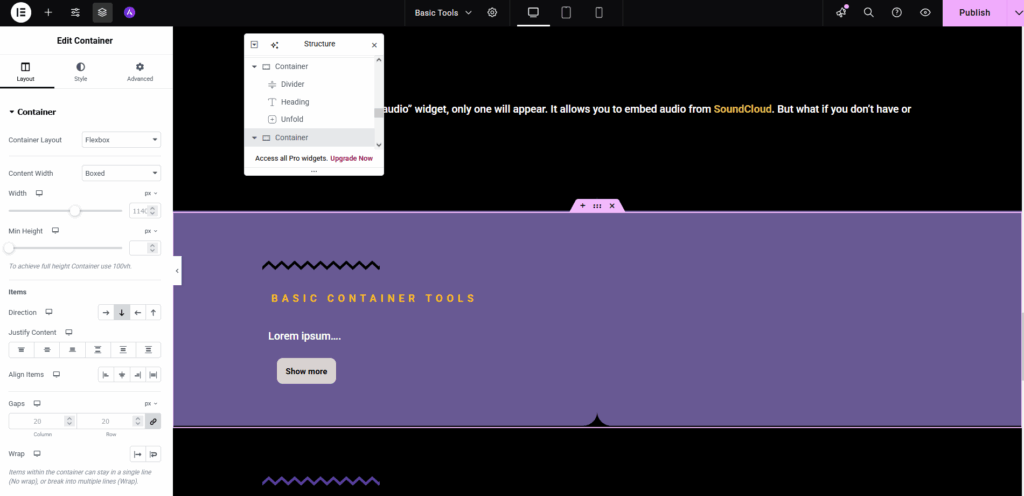
While it is good to highlight the different widgets on offer for page design, step 1 is to understand how containers work before placing widgets in them. You can start by visiting the links below. Also, on the Tips page, there will be videos that explain how to design using the Elementor page builder within Story Tappy.
- Define container layout
- Understanding how Flexbox containers work (as opposed to Elementor’s older version: grid sections). Flexboxes are the way forward.
- Advanced tab settings
- Margins and padding video
- Margins vs padding
- Structure navigator panel
- What is absolute positioning?
- Set absolute position video
- Do’s & don’ts: absolute & fixed position
- Elementor responsive 101
- Responsibe editing for mobiles and tablets
- You can generally avoid Elementor’s global layout and site settings because Astra’s Customiser already provides global settings. That said, if you want to tweak breakpoints (e.g. to add additional breakpoints), you will need to visit Elementor’s site settings.
anchor
An anchor is something that you will link to within a page. You could use it to jump ahead, or even make a menu for sections within a page. Use the Menu Anchor widget to insert it, then give it a name (without a hashtag). When you link to it later, you will need to add a hashtag (#) before the name. The URL would look something like this: https://website.com/page#anchorName. If you are linking to an anchor on the same page, you need only use this as a URL: #anchorName. Note that names are case sensitive.
spacer
Good web design is all about layout and space across multiple device sizes. To achieve this, we define container settings and tweak padding and margins, but sometimes we need something more – like a dedicated Spacer Widget that can be hidden on some screens using responsive settings.
divider
Dividers (not shape dividers) are ornamental lines that provide structure or interest to a page. There is the basic Elementor Divider widget or the more interesting PAP Divider widget, which makes animation possible. There is also an Image Separator widget, which basically positions an image at the edge of a container. This can combine well with a container’s shape divider.
forms
Please do not use a form widget for forms. Story Tappy recommends a different way to insert forms. As noted on Story Tappy’s home page and in our Terms of Service, we do not guarantee form functionality on your WordPress website when using the inbuilt tools. What that means is that, although you will find ‘form’ widgets, their responses may fill your inbox with spam (from automated bots) or may go missing. That’s because we do not link your website to your inbox and we are upfront about this. We feel there is a much nicer solution at hand, one which allows you to have cheaper ongoing host costs than certain other networks. This solution not only collects form data but connects that data with other services – something that would have otherwise required an account with a service like Zapier. Examples of integration: you can connect your form responses to a payment gateway (e.g. Stripe or Paypal) or to Google documents and spreadsheets. The solution is Google Forms and it’s free. There are videos online showing how to set up a Google form, like this one. There are even videos on ‘branching‘ within forms. Once you have created your form, you just copy the embed-code and place it on your page using the HTML widget.